If you want to get fancy (or, are like me and don’t want people to manually enter values into your spreadsheet because even a space can throw off a VLOOKUP).
You can use Data Validation to create a drop-down menu in a cell.
First, create a list of values you want in your drop-down menu. Either on the same sheet you’re working on or on another.
Go to the cell you want to create the drop down in and select it.
Then go to the data tab at the top of the screen and select Data Validation then Data Validation again from the menu.

You will get a Data Validation pop up box. Under the Allow: select List from the menu.
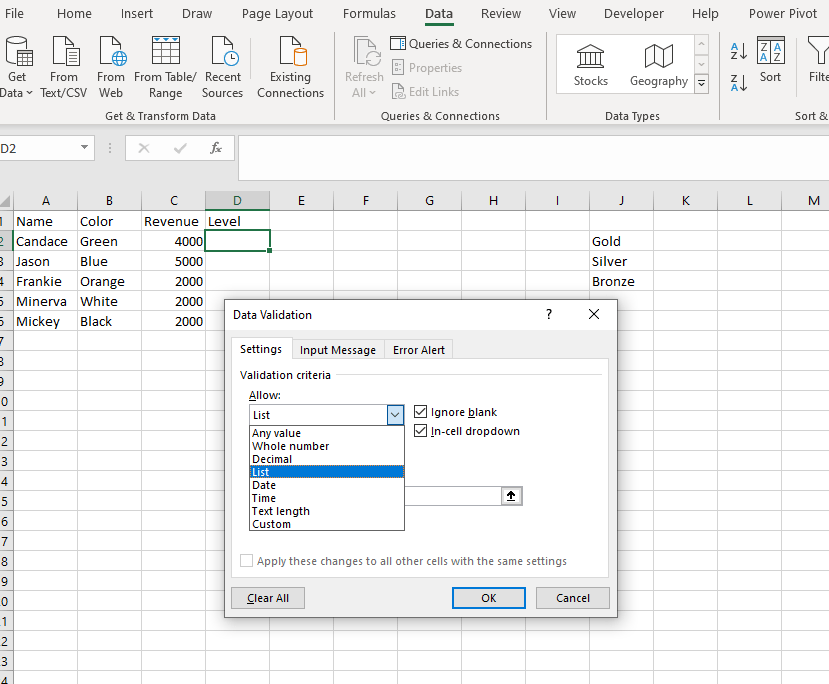
Make sure the boxes for Ignore blank and In-cell dropdown are checked.
Then tell Data Validation where to find your list by clicking on the up arrow in the middle box on the screen.
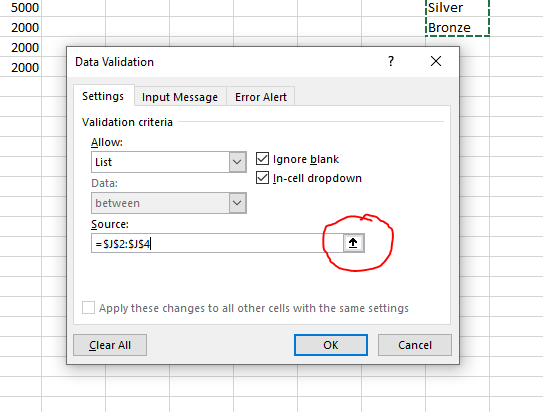
Select the cells in which the list is in (notice these are absolute cell references which means they will not change when you drag, copy and paste or anything else with your data validation cell).
Select OK
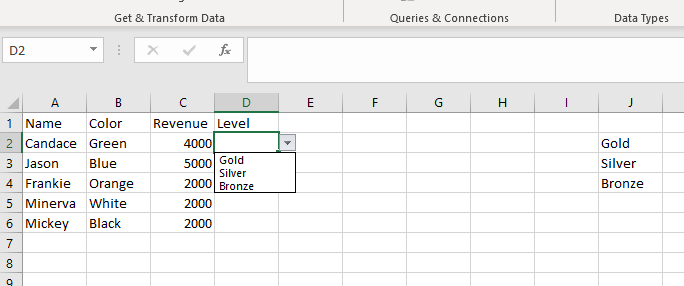
Now you have an in cell drop down menu.

 DiG with Data